Managing Clients
The Clients section in Mockhub helps you organize all your client accounts in one place.
By creating and managing clients, you can easily assign projects, keep communication clear, and maintain a professional workflow.
👤 Adding a New Client
-
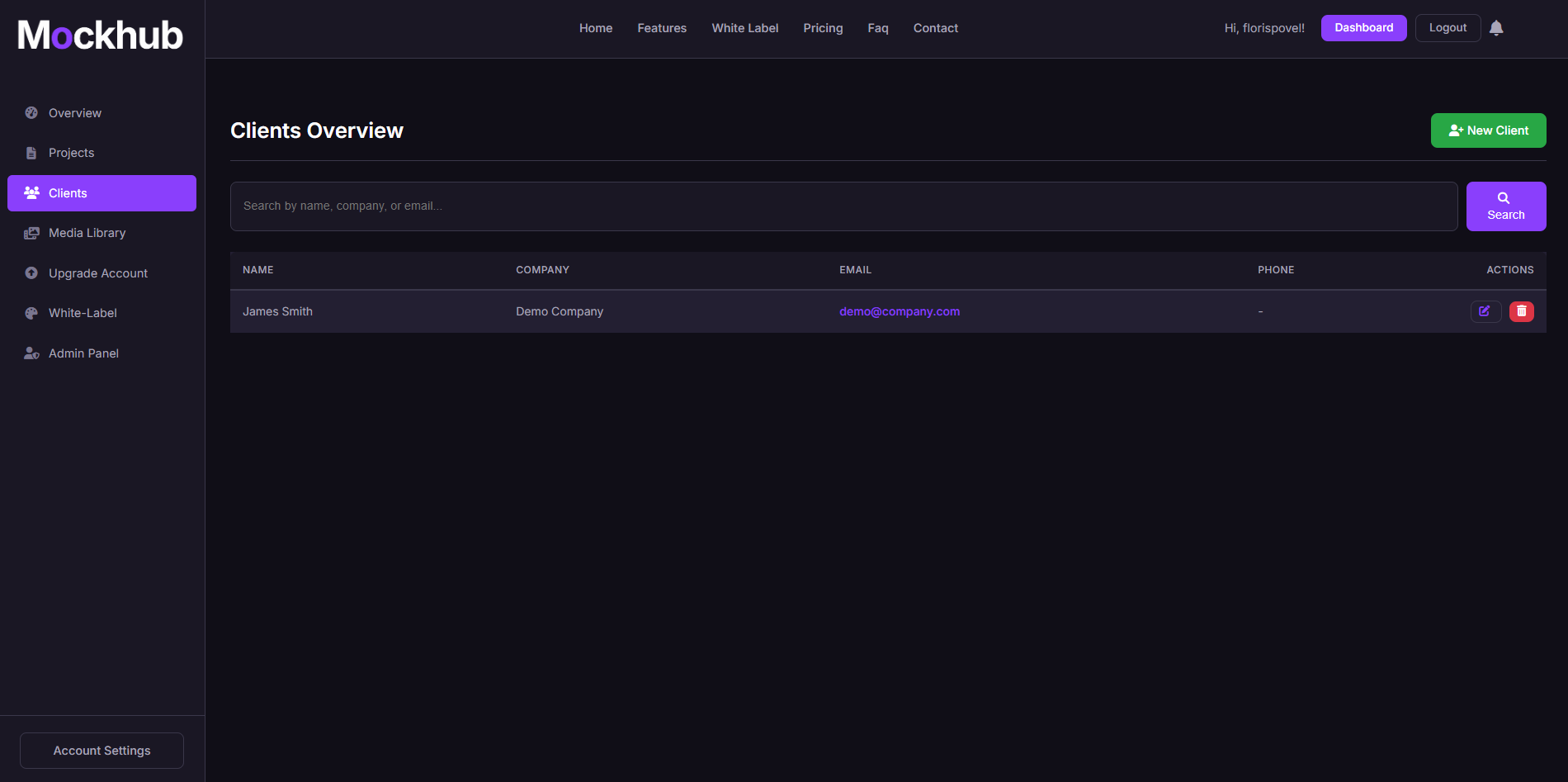
Go to the Clients page
Navigate from the sidebar to Clients. -
Click "Add Client"
Press the New Client button to create a client profile. -
Enter client details
Fill in the following fields:- 🏢 Client Name – The company or individual’s name.
- ✉️ Email Address – The client’s main contact email.
- 📞 Optional Info – Add phone number, notes, or other details if needed.
-
Save the client
After saving, the client will appear in your client list and can be assigned to projects.
🛠️ Managing Existing Clients
For each client in the list you can:
- 📂 Assign projects – Link projects directly to a client.
- ✏️ Edit details – Update client information at any time.
- ❌ Delete clients – Remove a client and its associated data.
- 🔍 Search & filter – Quickly find the client you need.
🖼️ Example: Clients Page
✅ What’s Next?
With your clients set up, you can:
- Create Projects and link them to a client.
- Use the Media Library to share files.
- Provide clients with secure, branded access via White-Labeling.
Need help with client management? Visit the FAQ or contact support@mockhub.app.